
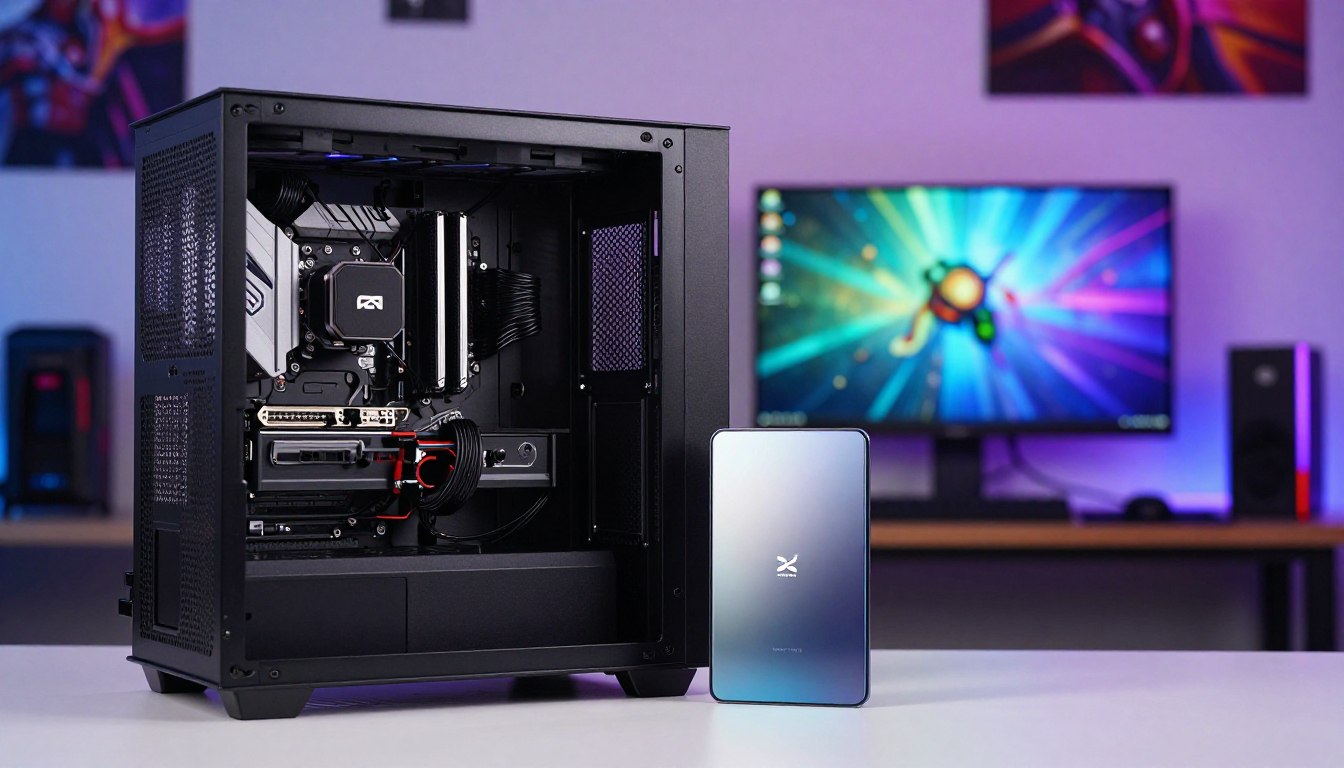

Can I Add an Ssd to an Inspiron Gaming PC? Everything to Know
Yes, you can add an SSD to an Inspiron gaming PC if its model has a compatible slot or connection. A compatible SSD can add storage or replace a slower current drive, giving you more room for games and files. The exact Inspiron model determines which slot and interface are available.
This upgrade can improve loading and Windows responsiveness, but it does not increase graphics capability. You’ll learn how to consider internal and external storage options, choose a suitable drive, and get it working in Windows. M.2 2280 is an M.2 drive form factor measuring 22 mm wide and 80 mm long.
Key Takeaways
- Check your exact Inspiron model and its supported storage connection.
- Add a second SSD if a compatible slot or bay is free.
- Replace the current drive if your system has no spare connection.
- Use an external SSD when you want storage without opening the PC.
- An SSD can help games load faster, but it does not upgrade graphics.
Find the exact Inspiron model number before buying any new drive.
Can I Add an SSD to an Inspiron Gaming PC?
Start with the complete Inspiron model number, because two systems in the same family can have different storage layouts. Only a model with a compatible open slot or bay can take an additional internal SSD.
Check the model’s manual for its supported interface, slot count, drive length, and any required bracket or cable. Dell Inspiron storage options can include 2.5-inch SATA, M.2 SATA, or M.2 NVMe PCIe, depending on the model.
Your exact Inspiron configuration determines whether an internal SSD can be added.
Find the exact Inspiron model and available slot
Find the full model name and configuration on the computer’s label or in Windows system information. Then open Dell Support and locate the user manual or service manual for that specific system. The manual can show slot and bay count, supported drive types, and required installation parts.
A Dell Inspiron 3891 SSD upgrade requires checking the 3891 documentation, not assuming every 3891 configuration has the same layout. The same rule applies when choosing an SSD for Dell Inspiron 15 models: the family name alone does not confirm compatibility.
Match the SSD interface and physical size
Compare the drive interface with the system’s supported connection. Most desktops and many laptops support 2.5-inch SATA SSDs, while some Inspirons also support M.2 SATA or M.2 NVMe PCIe.
Use the manual or a compatibility database to confirm the supported SSD interfaces. M.2 NVMe SSDs commonly measure 22 mm by 80 mm, but the length must match the computer’s slot. Check this four-point list before ordering:
- Exact Inspiron model and configuration
- Supported drive interface
- Available slot or bay
- Required length, caddy, or cable
Compare the drive’s length with the slot dimensions before ordering it.
Should I Add a Second SSD or Replace the Existing Drive?
If your Inspiron has an unused compatible slot, adding a second drive can keep the current drive in place. Replacement makes sense when there is no spare slot or you prefer one larger drive.
A second SSD preserves the current drive only when the system has a compatible open connection and any needed cable or bracket. This can be a simple way to expand game storage without moving your operating system or files.

Add a drive when an unused compatible slot is available
With a spare bay or slot, you can leave the current drive as it is and use the new drive for games, recordings, or other large files. This option keeps existing storage in place, though the added drive may need Windows setup before it appears as usable space.
Think about how much room your library needs. A high-end AAA game can use more than 100 GB, and Windows 11 may need 60 GB by itself. Those needs can add up quickly when you keep several games installed.
Replace the current drive when the system has no spare slot
If there is no unused connection, replacing the current drive with a larger SSD is the internal upgrade path. You can transfer your operating system and files through cloning, or install Windows on the replacement drive. Either approach needs planning to protect your data.
Can Dell laptops be used for gaming? Yes, gaming depends on the laptop’s overall hardware and the games it supports. A storage upgrade mainly affects loading and available space, not graphics capability.
A general capacity rule is to consider a new drive 30-50% larger than your current storage. Your gaming library and budget help narrow the choice. Check the space your installed games already use before deciding how much capacity to add.
Best SSD for Dell Inspiron 15 3000: How to Choose
For a price-conscious 2TB Gen4 option, the Crucial P310 had the lowest listed price among the named 2TB Gen4 models here. Compatibility comes first: confirm your exact Inspiron model supports the drive’s interface and length.
A fast read write rating or a low price does not prove that an SSD fits your computer. For a compatible 2TB Gen4 upgrade, the P310 is the lowest-priced named option in this comparison. The WD Black SN850X and Samsung 990 Pro provide useful performance figures for comparing specifications.
Listed U.S. prices below were recorded on October 11, 2026, and can change. The 2TB Gen4 models ranged from $253 to $354. A 1TB Gen4 NVMe SSD had a lowest listed price of $144.
| SSD model | Capacity and PCIe generation | Listed U.S. price and date | Retailer |
|---|---|---|---|
| Crucial P310 | 2TB Gen4 | $253, October 11, 2026 | Amazon US |
| WD SN3000 | 2TB Gen4 | $275, October 11, 2026 | Amazon US |
| WD Black SN850X | 2TB Gen4 | $354, October 11, 2026 | Newegg |
| Crucial P510 | 2TB Gen5 | $364, October 11, 2026 | Amazon US |
| Samsung 9100 PRO | 2TB Gen5 | $399, October 11, 2026 | Newegg |
The WD Black SN850X uses PCIe 4.0 x4/NVMe and is rated up to 7,300 MBps read and 6,600 MBps write. The Samsung 990 Pro also uses PCIe 4.0 x4/NVMe, with ratings up to 7,450 MBps read and 6,900 MBps write. Both are available in several capacities.
Treat the manual’s compatibility details as the deciding factor, not a drive’s advertised maximum speed.
How Do I Install an Internal SSD Safely?
Set aside a clean work area and power the computer down completely before opening the case. Safety first: disconnect power and reduce static risk before touching components.
A physical SSD installation typically takes about 10-20 minutes, not including data transfer or operating-system setup. Follow the service instructions for your specific Inspiron rather than guessing how its panel opens.
Prepare the computer and tools

Gather what you need before starting. Back up important data first, even if you plan to keep the current drive. Use this preparation checklist:
- Shut down the PC completely.
- Unplug its power cable and external cables.
- Use an anti-static wrist strap or ground yourself before touching components.
- Gather the correct small screwdriver and back up important data.
Read the model’s service instructions for opening the case or panel. Keep screws together, and avoid pulling a panel that still seems attached. Inside the case, locate the correct slot or drive bay before handling the new SSD.
Seat and secure the new SSD
Line up the SSD with its connector, then insert it gently at the angle or position specified for that slot. A 2.5-inch drive may need a bracket or caddy, while an M.2 drive may use a small retaining screw.
Secure the SSD with the correct screw or bracket, then close the case according to the service instructions. Keep loose screws and tools away from the motherboard. A fast, careful installation is better than pressing hard on a connector.
If the SSD does not line up naturally with its connector, stop and recheck its orientation rather than forcing it.
How Do I Set Up the New SSD in Windows?
A new secondary SSD may need to be initialized in Disk Management before it appears as usable storage in Windows. For a replacement boot drive, clone the current drive or install Windows on the new SSD.
Disk Management can initialize a secondary drive, create a simple volume, and assign it a drive letter. Cloning transfers the operating system, apps, files, and settings from the current drive.
You can add an SSD to an Inspiron gaming PC with Windows when the system supports it. Choose GPT or MBR to match the original drive’s format; NTFS is a file system option for the volume.
- Check BIOS detection to see whether the computer recognizes the SSD.
- Initialize a secondary drive in Disk Management if Windows prompts you.
- Create a simple volume and assign a drive letter.
- For a replacement, set the SSD as the boot device or install Windows.
BIOS entry keys vary by model, though F2 or Del are common. A sector-by-sector clone needs a destination SSD at least as large as the source drive. If you replace the boot drive, make sure the computer starts from the new SSD before removing the old one.
Before erasing or reformatting the current drive, verify that important files and the intended boot setup are available on the new SSD.
When Does an External SSD Make Sense for Gaming?
An external SSD is useful when you want more game storage without opening the Inspiron. Connection speed matters: the computer’s port limits the performance available from the external drive.
An external SSD adds game storage when its connection is compatible, but a faster drive cannot overcome a slower host port. Check the drive’s interface and your PC’s USB or Thunderbolt support before choosing a model.
These options differ in speed, capacity, and what your computer needs to support:
| Model or enclosure | Connection or rated speed | Host or drive requirement | Capacity or distinguishing detail |
|---|---|---|---|
| LaCie Rugged SSD Pro5 | Thunderbolt 5/USB4, 80Gbps port for full performance | 80Gbps Thunderbolt 5/USB4 port | 2TB at $399.99; 4TB at $599.99 |
| Adata SE920 | USB4, 40Gbps | USB4 or Thunderbolt 3, 4, or 5 | Up to 4TB |
| PNY RP60 | 20Gbps | Compatible host connection | IP65-rated design |
| Asus TUF Gaming A2 | 20Gbps | USB 3.2×2 port; user-supplied NVMe SSD | NVMe enclosure |
The LaCie model needs an 80Gbps Thunderbolt 5 or USB4 port to reach full performance. The Adata SE920 needs a supported USB4 or Thunderbolt host to use its interface. A lower-rated port can limit what either drive delivers.
The TerraMaster D1 SSD Plus is another enclosure that takes a user-supplied NVMe SSD. Its listed review price was $109.99. Check both the drive’s interface and the computer’s port before paying for a faster external model.
What Should I Do If the Drive Disappears or Fills Up?
If a new SSD is missing from File Explorer, check Disk Management before assuming the drive has failed. Back up important data first, especially before troubleshooting a drive that contains files you need.
A missing drive may need initialization, a drive letter, or a BIOS detection check. User reports about Windows updates are not proof that an update caused an SSD failure.
Reports of update-related SSD trouble are not proof of a direct connection.
Users reported missing SSDs or corrupted files after Windows 11 24H2 update KB5063878, released August 12, 2025. Reports described transfers of 50GB or more on drives over 60% full, but Microsoft reported no evidence of a direct connection.
Phison reported more than 4,500 cumulative testing hours and 2,200 verification cycles without reproducing the reported failures. That result does not prove what caused individual reports. Separately, one user said a Kingston NV2 2TB M.2 NVMe SSD became unrecognized during a large-file download after KB5057056, despite previously showing 100% health.
A nearly full SSD can leave too little room for updates and game files. Remove or move files to free space; a full drive by itself does not prove hardware failure. Back up important files before running repair steps or changing partitions.
Conclusion
An SSD upgrade is a practical way to add storage or improve loading on a compatible Inspiron. The exact configuration must support the drive and its connection. An internal or external SSD can give you more room, but neither promises a graphics-performance boost.
Your best first move is to locate the exact Inspiron model number and consult its manual before buying. That document can help you avoid ordering a drive that uses the wrong interface, length, or connection parts.
Write down your Inspiron’s exact model number and confirm its supported drive type before ordering.
FAQ
Can I use an external SSD for my gaming PC?
Yes, you can use an external SSD for extra game storage if the computer supports its connection. Usable speed depends on both the drive’s interface and your PC’s USB or Thunderbolt port. A fast external SSD connected to a slower port will not reach its full potential. Check the host connection before paying extra for a higher-speed model.
Can you put an SSD from a laptop into a PC?
Yes, but only if the PC supports the SSD’s interface, physical form factor, and length. A laptop M.2 drive may fit a desktop motherboard, while a 2.5-inch SATA SSD needs a compatible bay and connection. Compare the drive’s label and dimensions with the PC’s manual before moving it. Never force a connector that does not line up.
Can you insert SSD while PC is on?
No, shut down and unplug the computer before installing an internal SSD. Working inside a powered PC risks damage to the components and the drive. An external USB SSD can usually be connected while the computer is running. Use the operating system’s safe-eject option before unplugging an external drive that is in use.
Can I just plug an SSD into my PC?
An external SSD can connect through a compatible USB or Thunderbolt port. An internal SSD must be installed in a supported slot or bay, and Windows may need setup before the drive is usable. A new secondary drive might require initialization and a drive letter. A replacement boot drive needs an operating system or a working clone.
Will PC run slow if SSD is full?
A nearly full SSD can leave too little room for Windows updates, temporary files, and new game files. That does not automatically mean the drive has failed. Remove files you no longer need or move large games and media to another drive. Keeping working room free makes it easier to install updates and manage storage.
Which Windows 11 is killing SSD?
No Windows 11 update is confirmed to be killing SSDs. Users reported trouble after update KB5063878, including during large file transfers, but Microsoft reported no evidence of a direct connection. Those reports do not establish the update as the cause. Back up important files regularly, especially before troubleshooting a drive that disappears or reports errors.
Is 2TB a lot for gaming?
Yes, 2TB can hold multiple large games, though the number depends on each game’s size and your other files. A high-end AAA game can exceed 100GB, so several large titles can use hundreds of gigabytes. Windows also needs storage space. Check your existing game library before deciding how much capacity you want.
What is the biggest drawback to SSD drives?
SSDs typically cost more per gigabyte than hard drives, so the main drawback is often the price of higher capacity. A hard drive can offer more storage for a tighter budget, while an SSD usually suits games and files you want to load quickly. Compare the amount of space you need with your budget and connection options.

 By
By

 By
By
 By
By