
Can I Add an Ssd to an Inspiron Gaming PC? Everything to Know
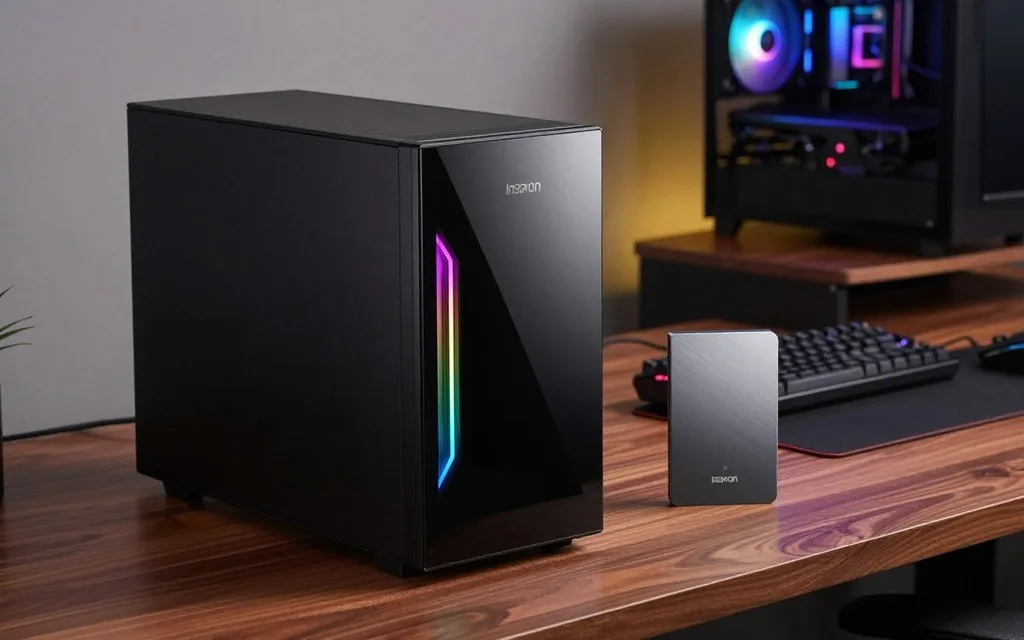
Yes, many Inspiron gaming PCs can take an SSD, but the right upgrade depends on the system’s exact configuration. Adding storage and replacing the boot drive are different jobs, so the best choice depends on what you want the new drive to do. M.2 is a compact, card-shaped storage format that installs directly into a compatible socket on the system board.
You can use a compatible SSD for files and games while keeping Windows on the current boot drive. Replacing that drive takes extra planning because Windows must move to the new one or be installed again. First, identify the exact model so you can check its documentation and choose a drive that fits.
Key Takeaways
- Many Inspiron gaming PCs support an SSD upgrade.
- The exact model determines which drive will fit.
- An added drive and a replacement boot drive need different setup.
- Check Dell service information before buying hardware.
- Find the full Inspiron model name before ordering a drive.
Can I Add an SSD to an Inspiron Gaming PC With an Empty Slot?
An empty slot can accept an additional SSD only when the connection supports that drive’s size and interface. Start with the exact model, since Inspiron configurations can differ even within one product line.
Dell’s service information can show whether the system uses M.2 or SATA, which drive lengths and interfaces it supports, and whether an open slot or bay is present.
An M.2 socket does not by itself confirm support for both SATA and NVMe drives.
Check the exact Inspiron configuration
Find the full model name, then open its Dell manual or service information. Check for an available connection, cable, power lead, and mounting hardware. Some computers have a spare socket; others need the current drive replaced. Dell’s Inspiron 15 5515 and Vostro 15 5515 replacement instructions cover an M.2 2280 SSD. The Inspiron 7506 2-in-1 Black has separate M.2 2230 and M.2 2280 replacement guides.
Match the drive to the available connection
Use the manual to compare the drive’s form and interface with the system’s supported hardware. The table shows the checks for common SSD types:
| SSD type | Form and connection | What to verify |
|---|---|---|
| 2.5-inch SATA SSD | Rectangular 2.5-inch drive, SATA data and power cables | Available bay, SATA port, power lead, and mounting hardware |
| M.2 SATA SSD | M.2 card, direct socket connection | Correct card length and SATA support in the socket |
| M.2 NVMe SSD | M.2 card, direct socket connection | Correct card length and NVMe support in the socket |
Windows can use a compatible added SSD for storage. Moving the existing Windows installation requires cloning it or installing Windows fresh. Choosing an SSD for Dell Inspiron models means matching the exact model’s supported form factor and interface. For an SSD for Dell Inspiron systems, use that same check. For the best SSD for Dell Inspiron 15 3000, choose the fastest compatible type confirmed by its documentation, not an assumed standard.
Check the service information for the exact model and configuration before purchasing.
How Do You Install an SSD Without Losing Data?
Back up important files and shut the computer down before opening its case. Careful preparation helps protect your data and hardware during installation.
An internal SSD must be installed with the computer shut down and unplugged. Use ESD protection, such as a grounded antistatic wrist strap, and follow your model’s service manual for the cover, battery, and drive mounting steps.
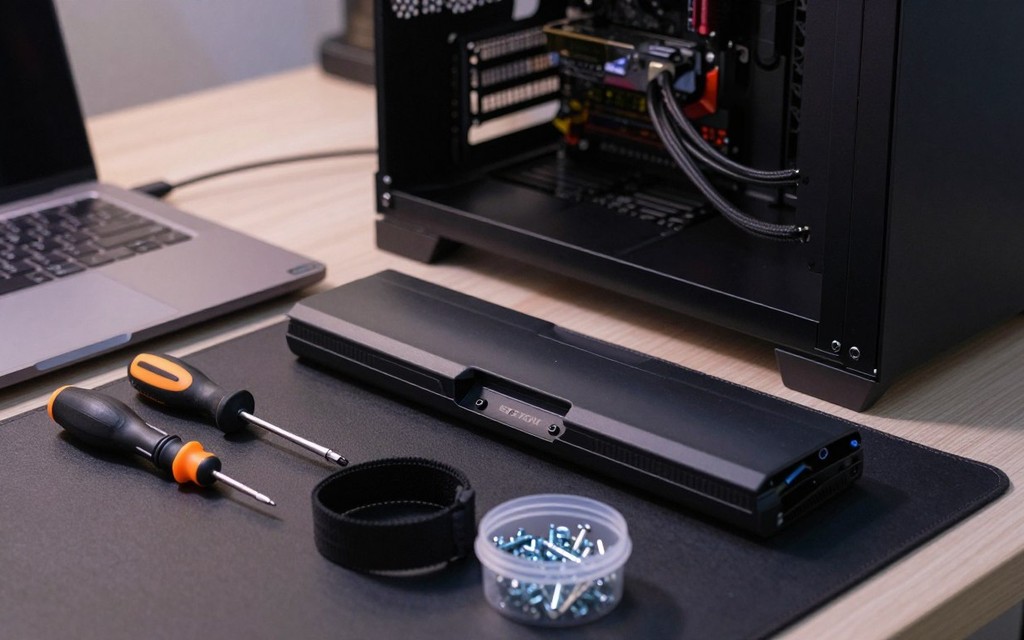
Dell’s Inspiron 15 5515 procedure illustrates why the process varies: its base cover uses two captive screws and seven additional screws. Dell’s instructions also disconnect the battery, then hold the power button for 20 seconds to drain flea power. Those details apply to that model, not every computer.
Prepare the computer and install the hardware
Use this checklist, adjusting each step to the service instructions for your exact system:
- Back up important files to another drive or a trusted backup service.
- Shut down, unplug peripherals, and use ESD protection.
- Open the computer according to its service instructions.
- Install and secure the drive in the verified slot or bay.
- Close the computer and check BIOS or Windows for drive recognition.
The Inspiron 3891 SSD upgrade, an SSD for a Dell Inspiron 15, and a Dell Inspiron 15 3000 SSD upgrade each require the precise model’s documentation. Do not assume one screw layout or battery procedure fits every variant. BIOS entry keys can include F2 or Del, depending on the computer.
Clone the boot drive or set up storage in Windows
For a boot-drive replacement, clone the old drive or install Windows fresh on the new SSD. Cloning carries over your existing setup, while a fresh installation starts with a clean Windows setup. For added storage, open Windows Disk Management to initialize, partition, and format the new drive.
GPT is the modern default partition style; MBR remains an option for older systems. NTFS suits Windows storage, while exFAT can help when you need cross-operating-system compatibility. If the new drive is not recognized, power down and recheck its physical connection before changing settings.
How Much Free Space Should You Leave for Games?
A nearly full SSD did not meaningfully change frame rates in the tested games, but being completely out of space caused programs to refuse to launch. Leave working room for Windows, software, updates, and game files rather than aiming for zero free space.
In 2026 testing, filling four SSDs from about 450 GB used to completely full minus 10 GB caused almost no change in average frame rates or 1% lows in Cyberpunk 2077, F1 24, and Horizon Zero Dawn Remastered. Scene load times rose by less than 10% as the drives filled.
Results from these tests may not represent every SSD on the market.
On 1 TB drives, FFXIV Dawntrail scene load times were nearly 10% shorter below 50% capacity than above it. The 2 TB Crucial T705 showed slightly longer scene loads above 90% capacity. Programs refused to launch when tested SSDs were completely full, and the free space needed depended on the program.
The tests included a 1 TB WD Blue SN580 rated for 600 TBW and a 2 TB Corsair Force Series Gen.4 MP600 rated for 3,600 TBW. Puget Bench tests for Photoshop, Premiere Pro, and DaVinci Resolve Studio found no significant productivity-performance loss as the tested SSDs filled. Keep enough unused capacity for the programs and updates you expect to install.
Conclusion
An SSD can add useful space to an Inspiron gaming PC when the drive matches the system. The exact Inspiron manual determines the compatible drive and the right method, so the model name matters more than the product family.
Your next step is to find the computer’s Dell Support documentation before buying hardware or opening the case. Look up your exact model on Dell Support and confirm its storage specifications before ordering the drive.
FAQ
Can I use an external SSD for my gaming PC?
Yes, a USB-connected external SSD can store and run compatible games. Its speed depends on both the drive and the computer’s USB connection. A faster SSD cannot overcome a slower USB port, so check which connection your computer provides. External storage can also make it easier to move a game library between compatible computers.
Can you put an SSD from a laptop into a PC?
Yes, if the PC supports the SSD’s form factor and interface. An M.2 card needs a compatible motherboard socket, while a 2.5-inch SATA drive needs SATA data and power connections. Some desktop cases also require a mounting bracket for a 2.5-inch drive. Check the SSD’s type before moving it.
Can you insert SSD while PC is on?
No, shut down and unplug the computer before installing an internal SSD. Internal upgrades are not hot-swappable, so connecting a drive while the system is running can risk damage or data loss. Follow the service instructions for your computer, including any battery-disconnection steps, before handling internal parts.
Can I just plug an SSD into my PC?
An external SSD connects through USB, but an internal SSD needs the right connection inside the computer. An M.2 SSD requires a compatible motherboard socket. A SATA SSD needs both data and power connections. A drive that fits physically may still use an unsupported interface, so check the computer’s specifications first.
Will PC run slow if SSD is full?
Not necessarily: tested games showed little change in frame rates as SSDs filled. Scene loading increased in some tests, and programs refused to launch when the tested drives were completely full. Keep room for Windows, software, updates, and game files so a full drive does not block everyday tasks.
Is 2TB a lot for gaming?
Yes, 2 TB gives you substantial room for games and other files. The number of games it holds depends on each game’s installation size, along with space used by Windows, software, and personal data. Large games can use much more storage than smaller titles, so check the sizes of the games you plan to keep installed.
What is the biggest drawback to SSD drives?
SSDs typically cost more per unit of storage than hard drives. That trade-off means you may need to balance capacity, speed, and budget when choosing a drive. A large SSD offers more room, while a smaller one may cost less; the right choice depends on how much space you need and how you use the computer.
If you want to dig further into is my top custom legit reviewing custom appar, read our Is My Top Custom Legit Reviewing Custom Appar guide.
If you want to dig further into what is kasta crypto peer-to-peer payment pla, read our What Is Kasta Crypto Peer-to-Peer Payment Pla guide.
If you want to dig further into what banks are crypto friendly guide to digit, read our What Banks Are Crypto Friendly Guide to Digit guide.
Leave a Reply